System BIOS emulation


System BIOS are the console's boot ROM, which usually contains a startup screen, a save file manager, a settings menu, and a main dashboard. It is common for disc-based consoles. Emulating the system BIOS for each console can be very challenging, but most of them are required for emulating games.
WIP
- Master System
- Game Boy
- Sega CD
- Nintendo 64DD
- Game Boy Color
- Game Boy Advance
- Nintendo DS
- Nintendo DSi
- Nintendo 3DS
- PlayStation Vita
- PlayStation 4
- Xbox One
- Nintendo Switch
- PlayStation 5
- Xbox Series X/S
IBM PC-compatible
Achieved through full system emulation capability. This is beyond basic environment emulation; Full-System Emulation recreates the entire hardware stack and architecture rather than just the software layer. By emulating the actual motherboard chipset and original firmware (e.g., Award, AMI), it enables a true "Cold Boot" experience with granular, low-level control. Users can interact with the virtual machine exactly like physical vintage hardware—adjusting DRAM timings, CPU ring ratios, memory latency, and bus speeds directly through the BIOS setup. This approach ensures the hardware-level behavior that standard environment emulators cannot match.
PlayStation
Allows memory card management and Audio CD playback or play the game if you insert it after booting the IPL.
Saturn
Interactive shell, placeholder text
Dreamcast
Interactive shell, placeholder text
PlayStation 2
Initial Program Loader (IPL) of the PlayStation 2 and its top level interface, allowing the player to load discs, change settings, and manage up to two memory cards at once. Use this dumper tool for ROM0, ROM1, ROM2, NVM and MEC files which will affect IPL’s console model number recognition positively when used with latest PCSX2 builds (see PlayStation 2's DVD player section for more information).
Xbox
MS Dash, placeholder text.
GameCube
Initial Program Loader (IPL) of the GameCube and its top level interface, allowing the player to load discs, change settings, and manage up to two memory cards at once.
- To boot the GameCube's BIOS and IPL, you need a dump from real hardware. Dolphin doesn't require it to load games but can be set to use it if desired. Current development builds have introduced a feature allowing users to load the BIOS directly from the interface in the Tools list without needing to load a game. If you're on the current stable release, use XFB Virtual and disable "Skip BIOS" in the GameCube options. You don't have to load a GameCube title for the startup animation begins, boot directly to the menu by using "Load GameCube Main Menu" under "Tools". If you insert the disc/disc image before booting the main menu, like on the original console, you hold the first controller's A-button down and the system will send you to the main menu instead of booting the game. You can then switch to another game with Change Disc, or you can explore the BIOS.
PlayStation Portable
The XrossMediaBar (pronounced "cross-media bar" and officially abbreviated as XMB) is a graphical user interface developed by Sony Computer Entertainment. You can use various features and applications using this interface.
- PPSSPP don't support XMB including short animation when PSP launches a game. But for replicating the original experience, nostalgia and better immersion including XMB-like interface there are several additional UI features for PPSSPP such as;
- Similarly to RPCS3, you can use custom sound files for PPSSPP UI and game list navigation feedback sounds[1]. Also, you can use custom sound files for RetroAchievement notifications[2], for setting these up you need to set "Settings> UI Sounds: On", "UI Background animation: Waves" and "Theme: Default", after these you need to change .wav files from "\PPSSPP\assets" directory with your custom .wav files. Also, there is a feature request for
 intro sound implementation to PPSSPP UI similar to XMB ( concept demonstration).
 - PPSSPP supports music playback when a game selected in the menu screen[3] similarly to XMB, but currently 98 on this screen for PPSSPP UI as "hrydgard" mentioned in that pull request.
- PPSSPP supports background wallpaper change when a game selected in the menu screen[4] similar to XMB.
- PPSSPP's UI font could be changed if you want. For this you need to change .TTF font file from "\PPSSPP\assets" directory with your custom .TTF font file, but it needs to be renamed as “Roboto-Condensed.ttf” just like original PPSSPP one (easiest solution).[5][6]
- You can simulate boot and game launching animations of the XMB (gameboot.pmf)[7] by using our script for PPSSPP's libretro core. To do this, use Launchbox as follows: right-click on the game, select 'Edit Game', go to 'Additional Apps', and then 'Add our batch script file', (use this plugin for editing multiple titles at once). Make sure to check 'Automatically Run Before Main Application' and 'Wait for Exit'. If you don't want to mess with Launchbox at all, use the alternative script that comes with it instead. Additionally, we highly recommend you to consider using Duimon's PSP shader preset for both the video file and PPSSPP libretro core, but without using the Duimon's intro animation, and make sure to use Duimon's recommended video settings for Retroarch. Also it's recommended to disable retroarch's game title splash screen.
- Similarly to RPCS3, you can use custom sound files for PPSSPP UI and game list navigation feedback sounds[1]. Also, you can use custom sound files for RetroAchievement notifications[2], for setting these up you need to set "Settings> UI Sounds: On", "UI Background animation: Waves" and "Theme: Default", after these you need to change .wav files from "\PPSSPP\assets" directory with your custom .wav files. Also, there is a feature request for
- JPCSP is able to boot the official PSP VSH interface, though the menus are not yet working properly, it is currently only an alpha release.
Xbox 360
- tcrf: Xbox 360 Dashboard revisional differences
- se7ensins: Complete History Of Xbox 360 Dashboard Updates
- Wikipedia - List of Xbox 360 applications
The Xbox 360 Dashboard is the console's primary graphical user interface (GUI), serving as a central hub for launching games and applications. Throughout its lifecycle, the interface underwent several major revisions, the UI transitioned from the original "Blade" design to tile-based layouts, most notably the "New Xbox Experience" (NXE) and Metro-style updates introduced various social and multimedia features. The Dashboard features robust support for media streaming, allowing users to access music, photos, and videos directly from a PC (using Windows XP MCE). This is facilitated through the console’s built-in Windows Media Center Extender (Version 2) functionality. This integrated version should not be confused with the standalone Media Center Extender hardware devices or the Version 1 add-on used for the original Xbox. Later revisions of the Dashboard introduced Avatars, customizable 3D personas representing the player, similar to the Nintendo Wii's Mii system.
- Xenia Canary supports dashboard emulation (you can boot it, but emulating it fully like ODD, HDD emulation and more requires a lot of additional work), see here, here and here (see Emulator files#Xbox 360 section for the dashboard files and tutorial). Xbox 360's Xbox Guide dash menu is not emulated at the moment. XAM's profile manager emulation via Xenia UI is possible for canary and its branches. Various other system functions have been stubbed through community efforts, with partial progress in some areas. Nevertheless, support for many system functionalities remains insufficient. Xbox 360 doesn't have a "bios", at least not one that's similar to something like most other systems. The dashboard, kernel, guide stuff is located in the nand (virtual device is Flash:), as its own executables of sorts. That's the system files, and does everything. As many times the devs mentioned, Xenia has its own kernel built in that mimics what Xboxkrnl and XAM does, to avoid requiring system files from a Xbox 360 to work, so devs built the bare minimum of the kernel functions so some stuff would "work". That also means that a lot of functions are unimplemented, thats why so much kernel stuff is overlooked upon, since games dont need much of it, and dashboard doesnt work properly natively in xenia so they dont necessarily need to be implemented anyway. A consequence of that is that the HLE implementation of the kernel, is; minimal, and wasnt meant to handle more serious tasks like the overlay (Xbox Guide dash menu) running in the background and each and every guide-related file, and that's another reason that Xenia cannot use the original Xbox 360 UI (XUI), since XUI functions are unimplemented and Xenia uses imgui instead to handle stuff like message boxes, errors, dialogs, text boxes, etc that would otherwise be using one of the many executables found in the system files. Then, it depends on some API (not sure) to render the boxes themselves, and multiple XEXs running in the background at once, swapping XEXs in real time, and then you realize just how much work is required to get JUST the "Xbox Guide dash menu" working... and SO much more stuff that we didnt cover in this message. That's just scratching the surface basically.[8] Xenia Canary has basic support for XMP (Xbox Music Player) features, primarily focused on in-game music playback. Custom/user-provided music (e.g., from a virtual or physical Xbox 360 music library) is not supported yet. See here. Only music embedded within games or accessed through in-game mechanisms works at this stage. VFS (Virtual File System) implementation is kept as minimal/basic as possible. Notably, XAM does not enumerate files using a virtual/emulated device in the same way as real hardware. Instead, it relies on the host content directory (typically the content folder) for all file operations. This means dashboard/apps features involving file browsing, media library access, or external content loading are limited or non-functional beyond what's directly handled via the host path. See File System Abstraction section for more information about this. While a massive amount of community and developer effort over the last few years went into writing these minimal HLE stubs and implementations, development has recently shifted toward rewriting the XAM module using a LLE approach. By loading the original XAM module directly, this transition provides a much smoother development path and drastically improves overall emulation accuracy. In the future, this ongoing LLE implementation could potentially resolve these long-standing architectural bottlenecks such as running multiple background XEXs, implementing native XUI rendering, and enabling deeper VFS/XAM device file routing, finally paving the way for proper Xbox Guide and fully functional dashboard and other system features emulation. For the most up-to-date technical details, discussions, and potential future improvements (e.g., deeper VFS/XAM device emulation), check the dedicated Xenia Discord channel.
- You can always use user batch scripts that automate the Xbox 360 Slim (S model)'s iconic touch-sensitive "chime" or "ping" sound when turning on or ejecting a disc simulation, boot animation, dashboard loading and game selection process, aiming streamline the process until this feature request implemented.
- Keep in mind that you can emulate various Kiosk discs for Xbox 360 such as "Xbox 360 Retail Kiosk Disc 1.0" for experiencing "Blade" interface. Another alternative is using compilation discs such as "Xbox Live Arcade" for "Blade" interface and "Xbox Live Arcade Game Pack" for "New Xbox Experience" interface. However, these kiosk and compilation discs are only partially compatible with Xenia so don't expect perfect experience; see Interactive Kiosk page for more information.
- Doritos Crash Course, Full House Poker, various Xbox Live Indie Games, and other games that use your Xbox 360 avatar are mostly incompatible with the main builds. While full support is not yet integrated, there has been significant progress toward avatar emulation: PR #768 and work-in-progress experimental builds represent the initial major steps toward functionality. If you are not using the specific experimental builds mentioned above, attempting to access avatar editors or related menus will result in a softlock. On top of that, profiles created directly within Xenia Canary lack the necessary avatar data, and for any avatar rendering to function, users must currently use profiles generated on and dumped from physical Xbox 360 hardware (require a specific local directory to store and pull the necessary assets for proper avatar rendering and data management) because randomly generated avatars are not yet implemented (though support is planned).
- Xenia-Canary partially support real-time XEX (executable) swapping/switching for the titles with multiple executables: when a game attempts this, Xenia creates a "launch_data.bin" file. However, the emulator cannot currently boot the new executable automatically. To continue gameplay, close Xenia Canary completely and Relaunch Xenia Canary. The emulator will detect the launch_data.bin file and automatically boot the correct XEX to resume your progress. For a more seamless experience, consider using Xenia Edge. It features enhanced window and interface management, allowing for much smoother transition handling without manual restarts.
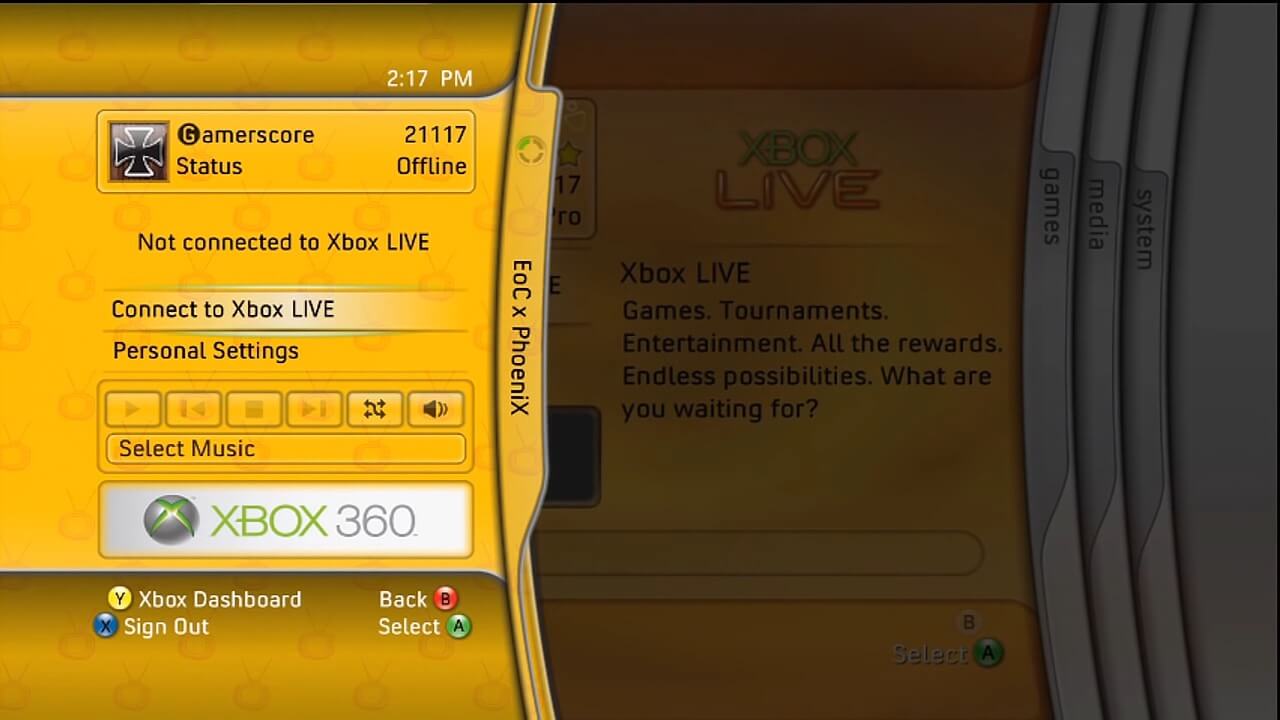


- Fission only supports Xbox 360's Xbox Guide dash menu, Friends/Party and Notifications, other than that, there is no Dashboard interface emulation whatsoever. Some Xbox 360 apps supported (Xbox One and Series X/S apps) on the newer consoles though.
PlayStation 3


The XrossMediaBar (pronounced "cross-media bar" and officially abbreviated as XMB) is a graphical user interface developed by Sony Computer Entertainment. You can launch various applications from this interface as well.
- RPCS3's HLE XMB support is currently limited, meaning many functions and applications do not work properly. This limitation can negatively impact emulator compatibility and prevent certain media such as BD-ROM demo discs (e.g., BCJX-96003 and BCJX-96004) from functioning as intended.
- Several workarounds are available though. For instance, users can extract BD-ROM disc images to watch videos manually using media player software, or install extracted .pkg files directly via the RPCS3 GUI. Despite these limitations, some applications, such as Netflix, can be run directly from the RPCS3 GUI.
- As detailed in the Trophies section, both trophy and home menu simulation sounds can be customized. Much like PPSSPP, RPCS3 allows users to import and remove custom sound effects.
- If you are planning to use the RPCS3 home menu overlay (which simulates the PS3's XMB overlay OSD during gameplay) it is recommended to uncheck "Pause emulation during home menu" and configure an "Open Home Menu" shortcut under *Configuration > Keyboard Shortcuts*.
- If you want to boot the VSH/XMB environment with a single click, you can use a Windows batch script placed directly inside your portable RPCS3 directory.Before using the script, ensure you complete the following prerequisite steps:
- Follow the RPCS3 FAQ Initial Setup guide to configure VSH directly within the emulator itself.
- Create the mandatory custom configuration file named
config_vsh.ymlinside theportable\config\custom_configs\folder. An easy way to do this is to take an existing game's custom configuration file, copy it, rename it toconfig_vsh.yml, and then adjust the internal values by following the RPCS3 FAQ guide webpage. Once the initial setup is complete and the configuration file is ready, create a text file namedboot_vsh.batin your main RPCS3 folder and paste the following code into it:
:: Change the current directory to the folder where this batch script lives
cd /d "%~dp0"

:: Start RPCS3 using the exact script location as the base path
start "" "rpcs3.exe" --config "%~dp0portable\config\custom_configs\config_vsh.yml" "%~dp0portable\dev_flash\vsh\module\vsh.self"
- Tip: Once the initial setup is complete, on top of the settings recommended in the RPCS3 FAQ page: make sure to change the SPU Decoder from Recompiler (LLVM) to Interpreter (dynamic) from
config_vsh.ymlas well. Since you cannot do much inside the emulated and limited VSH environment anyway, the high performance of the LLVM recompiler is unnecessary, and the interpreter's performance will remain acceptable. Making this change safely bypasses the caching stage, meaning you won't have to wait for the SPU Cache to compile every single time you boot the VSH.
Nintendo Wii

The system provides a graphical interface to the Wii's abilities. Placeholder text.
- Dolphin is capable of running the system menu. To get the system menu, one needs to use BootMii to dump the NAND of the Wii and import it. Refer to the NAND usage guide on the Dolphin wiki for more details. As of Dolphin 5.0-4588 version, it is possible to automatically get the System Menu, along with all other system software, by performing an online update (in the Tools menu).
- If you want to boot into the Wii Menu with selected disc image from your frontend software rather than directly launching a game, use this command: -b -n 0000000100000002 -C Dolphin.Core.DefaultISO= — If you're using LaunchBox, make sure to check the option 'Remove space before ROM'.
Nintendo Wii U
Wikipedia:Wii_U_system_software#Wii_U_Menu, placeholder text
- ↑ PPSSPP pull request: add menu and interface sounds
- ↑ PPSSPP pull request: Custom achievement sound effects
- ↑ PPSSPP pull request: Play the game's SND0.AT3 when a game is selected in the menu and on the "game screen".
- ↑ PPSSPP pull request: Show game background during controller/keyboard game selection
- ↑ PPSSPP forum: Where can I find PSP original font that supports full Unicode and can be used in emu?
- ↑ PPSSPP forum: Change font of PPSSPP
- ↑ There is a custom PPSSPP build for booting gameboot.pmf
- ↑ seven7000's discord message about Xenia and dashboard emulation